Read and Reflect
Discover a spiritual experience of St. John Eudes and take time to reflect on it.
Prayer · Eudist Spirituality
A daily prayer following the liturgical calendar.
Every day, Ave Cor offers a prayer inspired by St. John Eudes, tailored to the seasons and the liturgical calendar. Spoken and written texts nourish personal or communal prayer; scenes from Quebec’s North Shore, selected throughout the seasons, accompany it.
Overview
Discover a spiritual experience of St. John Eudes and take time to reflect on it.
Accompany your prayer with the audio recordings available in the app.
Use these resources as a foundation for prayer as a family or in a community.
Prayer, Every Day
Computer · 01
MSI Installer
avecorinstaller.msi
Computer · 02
DMG disk image
mobile.avecor.dmg
Phone and tablet · 03
Find the app on your phone or tablet. Check its compatibility on your store’s page before installing it.
Install from your app store
App Store or Google Play
Having trouble? Let’s take it step by step.
The screenshots show how to install Ave Cor with Microsoft Edge. Labeling may vary depending on your version of Windows and browser.
SmartScreen takes into account the reputation of the download. This message may appear for an app that has been downloaded only a few times: it does not prove that the app is either dangerous or harmless.
Verify that you used the official button above, that the download comes from eudistes.net, and that the file name matches “Ave Cor.” An unexpected name or publisher should be reported to support before opening the file.
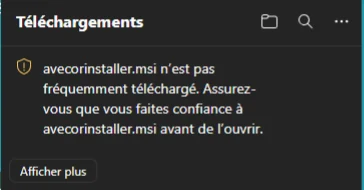
After verifying its source, open your Edge downloads (Ctrl + J), then click the … menu next to the file. Select Keep. If a second warning appears, click the arrow next to Delete and select Keep Anyway—but only if you trust the file and its source.
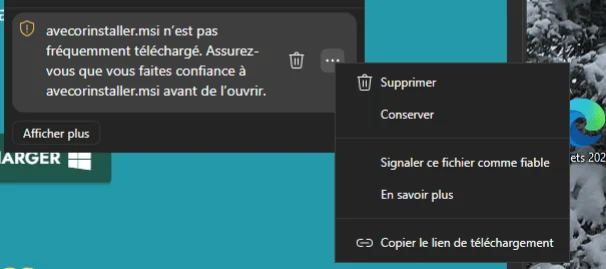
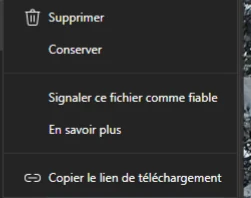
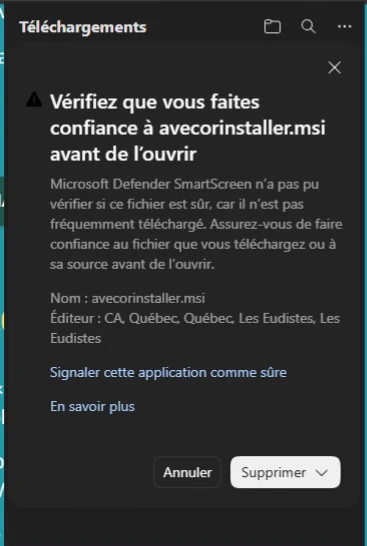
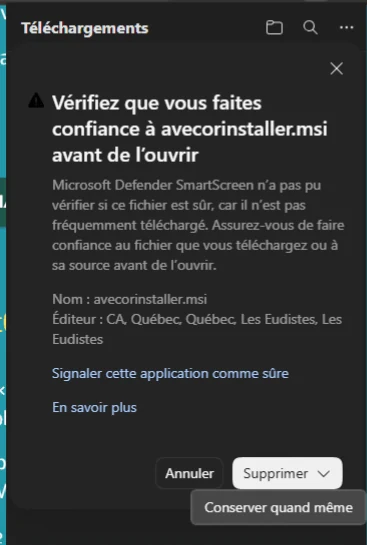
The options “Mark this file as trusted” or “Mark this app as safe” are used to submit a report; they are not required to install Ave Cor.
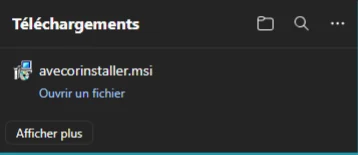
In your downloads, click “Open file,” or open withorinstaller.msi from the Downloads folder. Follow the installation wizard. A Windows permission prompt should correspond to the installation you just started.
If a “Windows has protected your computer” window appears, double-check the source and publisher. The “More info” button may display “Run anyway.” Use this exception only for an official, verified installer. If you cannot confirm its origin, contact us.
Stop the installation if your antivirus detects malware, if the download comes from a different address, or if the publisher seems suspicious. Do not disable Defender, SmartScreen, or macOS protections to install the application.
On a computer managed by an organization, an option may be disabled by the administrator: contact your IT department. Include the exact message, your system version, and a screenshot without personal data when contacting support.
Start by launching Ave Cor from Applications. If macOS cannot verify the developer—and only after you’ve confirmed that your copy comes from an official source—open System Preferences → Privacy & Security. After attempting to open the app, the “Open Anyway” option may appear. Confirm that you want to open it and authenticate if prompted.
This authorization applies only to this app. Do not ignore any message warning of malware or a corrupted app: download a new official copy or contact support.
See Apple’s instructions ↗Quit Ave Cor. Back up or export your locally stored personal documents, unsynchronized work, and useful settings, if the app allows it. Make sure you have your login credentials and can retrieve your collections.
Whether data is retained after uninstallation depends on its location and how the app works. If in doubt, ask support how to back it up before deleting anything. Do not manually delete data folders or system libraries.
If uninstallation fails, save the error message and ask for help. Do not simply delete the program’s shortcut or folder.
Microsoft Uninstallation Guide ↗Do not empty the Trash until you have checked its contents. If the app is listed as open, quit it or restart your computer before trying again.
Apple Uninstallation Guide ↗Send an email to cjm@eudistes.org, specifying whether you’re using Windows or macOS and its version, the name of the downloaded file, the step that failed, and the exact error message. Include a screenshot after blurring out your personal information. Never share your password.
A problem with the connection, access permissions, or the service itself may persist even after reinstallation; support will be able to distinguish these situations from an installation error.
Texts by Saint John Eudes and audio recordings accompany personal or communal prayer. Scenes from the North Shore illustrate this daily practice.
Check your device’s compatibility and the app’s availability in your country on its App Store or Google Play listing. If the app isn’t available, please provide support with your device model and operating system version. The desktop versions remain accessible via the buttons on this page.
Information verified in the official Microsoft SmartScreen and Apple guides.