
Explore the collections
Browse archival collections related to Eudist people, communities, and institutions.
Archives · Vicariate of North America
Explore the Eudist Fathers’ archival collections.
Corde Magno provides access to the Eudist archives, the “Eudist Fathers’ Collections”: nearly 100,000 records, more than 60,000 of which are digitized. The application indexes metadata and full text so you can find people, titles, dates, words, and phrases.
Overview
Browse archival collections related to Eudist people, communities, and institutions.
Find authors, titles, and dates, as well as words and phrases in document contents.
Explore archival images and, when available, their original and processed versions. When reusing them, respect the applicable rights and credit the source collection.
Available content and contribution options depend on your access rights.
Explore the application
Access to Corde Magno
Would you like to consult the digital archives of the Vicariate of North America or help document them? Request an account by selecting Corde Magno as the document database and specifying the access level you need.
An administrator will review your request and confirm access before you can use the account. Advanced access is available only in the Windows or macOS desktop application. On mobile, Corde Magno is for browsing only; you cannot request or obtain advanced access.
Contribute · Corde Magno
Submit a record or document to the archives of the Vicariate of North America. The form lets you add a description, file, or link, then select the Corde Magno database.
Select Corde Magno as the target database. Email verification is required before submission, and your access rights will be checked.
Batch upload · administrators only
Administrators can submit multiple files or an entire folder related to the archives of the Vicariate of North America in a single operation, along with the information needed to classify them.
This feature is restricted to authorized administrators. Select Corde Magno on the form; account permissions are checked before submission.
Your library, always at hand
Desktop · 01
MSI installer
cordemagnoinstaller.msi
Desktop · 02
DMG disk image
mobile.cordemagno.dmg
Phone and tablet · 03
Find the app on your phone or tablet. Check its compatibility on your app store listing before installing. The mobile version is for browsing only; it does not request or provide advanced access.
Install from your app store
App Store or Google Play
Running into trouble? Let’s take it step by step.
The screenshots shown here are for Ave Cor and its installer, avecorinstaller.msi. They illustrate Microsoft Edge menus. For Corde Magno, look for cordemagnoinstaller.msi. Labels may vary depending on your version of Windows and browser.
SmartScreen considers a download’s reputation, among other factors. This message may appear for an application with few downloads; it does not prove that the app is either dangerous or safe.
Check that you used the official button above, that the download came from eudistes.net and that the file name matches Corde Magno. If the name or publisher is unexpected, contact support before opening it.
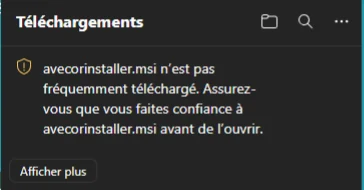
After verifying its source, open Edge downloads (Ctrl + J), then open the file’s menu … . Choose Keep. If a second warning appears, open the arrow beside Delete and choose Keep anyway, but only if you trust the file and its source.
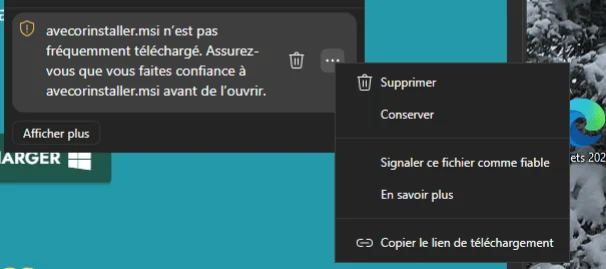
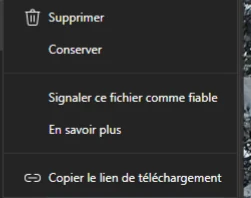
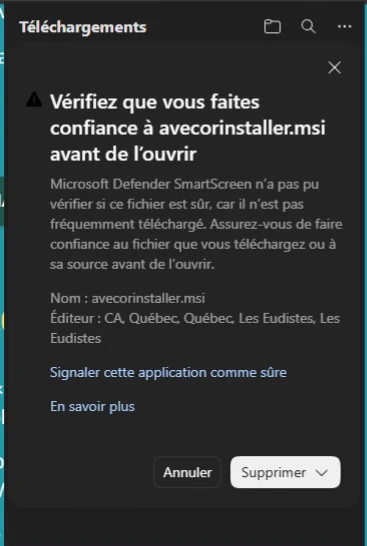
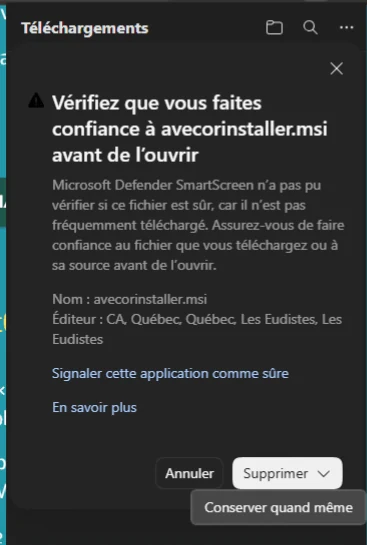
The options “Report this file as safe” and “Report this app as safe” send a report; they are not required to install Corde Magno.
In Downloads, click Open file, or open cordemagnoinstaller.msi from the Downloads folder. Follow the installation wizard. A Windows permission prompt should correspond to the installation you just started.
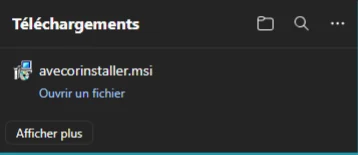
If a “Windows protected your PC” window appears, check the source and publisher again. The More info button may display Run anyway. Use this exception only for a verified official installer. If you cannot confirm its source, contact us.
Stop if your antivirus reports malware, if the download came from a different address, or if the publisher looks suspicious. Do not disable Defender, SmartScreen, or macOS protections to install the app.
On an organization-managed computer, your administrator may block an option; contact your IT department. When contacting support, include the exact message, your operating-system version, and a screenshot with personal information removed.
First try launching Corde Magno from Applications. If macOS cannot verify the developer, and only after confirming that your copy came from the official source, open System Settings → Privacy & Security. After attempting to open the app, the option Open Anyway may appear. Confirm that you want to open the app and authenticate if asked.
This permission applies to this app only. Do not bypass a warning that the app is malicious or damaged: download a fresh official copy or contact support.
See Apple’s instructions ↗Quit Corde Magno. If the app allows it, back up or export personal documents stored locally, unsynced work, and useful settings. Make sure you have your sign-in details and can find your collections.
Whether your data remains after uninstalling depends on where it is stored and how the app works. If in doubt, ask support how to back it up before deleting anything. Do not manually delete data folders or system libraries.
If uninstalling fails, save the error message and ask for help. Simply deleting the shortcut or program folder is not enough.
Microsoft uninstall guide ↗Do not empty the Trash before checking its contents. If the app is shown as open, quit it or restart before trying again.
Apple uninstall guide ↗Email cjm@eudistes.org and include whether you use Windows or macOS and its version, the downloaded file name, the step that fails, and the exact message. Attach a screenshot after hiding private information. Never send your password.
A connection, access-rights, or service issue may persist after reinstalling; support can help determine whether the problem is with installation or something else.
Collections and contribution options depend on your access rights. If expected content is missing or you need additional access, contact support and name the application.
Check device compatibility and whether the app is available in your country on its App Store or Google Play listing. If it is not offered, tell support your device model and operating-system version. Desktop versions remain available through the buttons on this page.
Information checked against the official guides Microsoft SmartScreen and Apple.